
Welcome to Keystone X: Plain-English Accounting & System Flows
A complete beginner's guide to how Keystone X connects your daily sales, stock, purchasing, workshop jobs, and bank accounts—with zero prior accounting knowledge required.
1. What is Keystone X?
Keystone X is an all-in-one Enterprise Resource Planning (ERP) and Accounting System. Instead of using separate spreadsheets for quotes, another program for stock, a paper book for workshop job cards, and another tool for bank statements, Keystone X links everything together automatically.
Whenever you perform an action in one part of the system (for example, issuing a Tax Invoice to a customer), Keystone X automatically updates all related parts of your business behind the scenes:
- It increases the amount that customer owes you (Accounts Receivable).
- It calculates the exact tax portion owed to the tax authority (Output VAT).
- It deducts the physical items sold from your warehouse shelf (Inventory) and records which Serial Numbers went to that customer.
- When the customer pays, it adds the money to your Bank Account and writes the entry into your Cashbook Ledger.
2. Accounting 101: Plain-English Dictionary
You do not need to be an accountant to run Keystone X. The software handles the accounting math for you automatically. However, understanding these 8 everyday financial terms will help you read every screen and report with confidence:
| Accounting Term | Plain-English Meaning | Where You See It in Keystone X |
|---|---|---|
| 1. Double-Entry Accounting | Every financial event has two sides: where the money came from and where it went. Money never appears or disappears out of thin air. | Handled automatically! When you record an Invoice Payment, Keystone X reduces what the customer owes you and increases your Bank Account balance at the same time. |
| 2. Debit (Dr) vs. Credit (Cr) | In your Cashbook & Bank Accounts: • A Debit / Inflow (+) is money coming into your bank account. • A Credit / Outflow (−) is money going out of your bank account. (Note: On a Customer Statement, a Debit increases what the customer owes you, while a Credit—like a Payment or Credit Note—reduces what they owe you.) |
Cashbook Ledger (/Cashbook/index), Customer Statements, and Manual Journal Vouchers. |
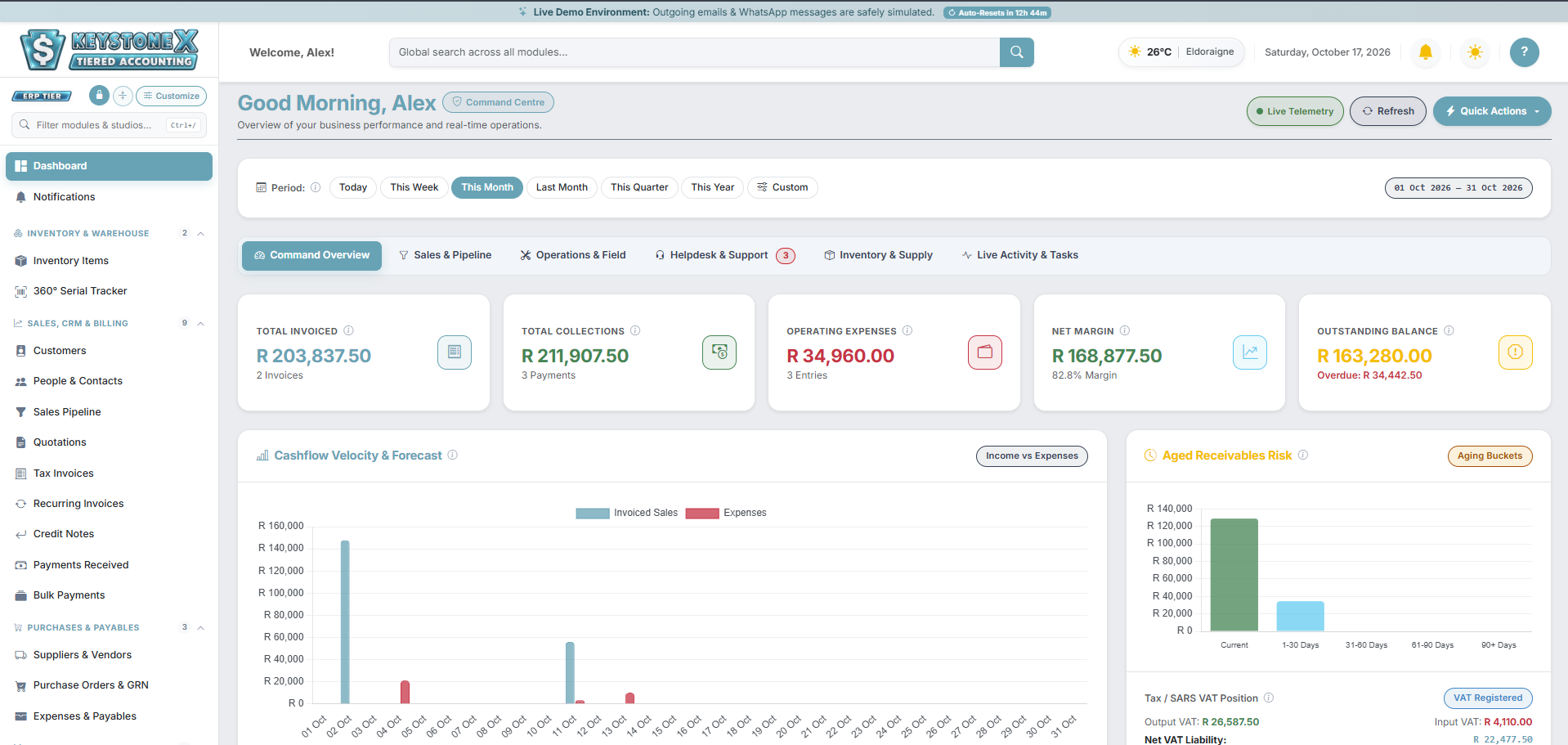
| 3. Accounts Receivable (AR / Debtors) | Money that your Customers owe you for Tax Invoices you have issued that have not been paid yet. | Customers (/customer/index), Tax Invoices, and the Aged Receivables Report (which groups unpaid invoices by Current, 30, 60, and 90+ days overdue). |
| 4. Accounts Payable (AP / Creditors) | Money that you owe to your Suppliers (Vendors) for stock purchased or business expenses incurred. | Suppliers & Vendors (/vendor/index), Purchase Orders, and Expenses & Payables. |
| 5. Output VAT vs. Input VAT (SARS VAT201) | • Output VAT: The tax (e.g., 15%) you charge customers on your sales invoices. You collect this on behalf of SARS. • Input VAT: The tax (e.g., 15%) your VAT-registered suppliers charge you on business expenses and stock purchases. • Net VAT Payable: Output VAT − Input VAT = what you pay to (or claim back from) SARS. |
Calculated automatically on every line item and summarized in the SARS VAT201 Report (/report/sarsVat201). |
| 6. Pro-Forma Invoice vs. Tax Invoice | • A Quotation / Pro-Forma Invoice is an estimate or payment request before final billing—it does not trigger a tax liability or deduct physical stock yet. • A Tax Invoice is the official legal accounting document—it deducts stock, records revenue, and locks in Output VAT. |
Quotations (/quote/index) and Tax Invoices (/invoice/index). |
| 7. Goods Received Note (GRN) | The warehouse checklist confirming that physical goods ordered on a Purchase Order (PO) have actually arrived at your door. | Purchase Orders & GRN (/PurchaseOrder/receive). Receiving a GRN is what actually adds the stock quantities and serial numbers into your warehouse. |
| 8. Stock Valuation (FIFO vs. WAC) | How the system calculates the cost value of items sitting in your warehouse: • FIFO (First-In, First-Out): Assumes the oldest stock bought is sold first. • WAC (Weighted Average Cost): Averages the purchase price across all units in stock. |
Configured in Inventory Governance Studio (/inventory/settings) and viewed in the Stock Valuation Report. |
3. The 5 Core Business Workflows (How Everything Connects)
Before exploring individual buttons, follow these five workflows to understand the recommended order of operations in Keystone X:
- Capture a Prospect (Optional): Log a new inquiry in Sales Pipeline (
/lead/index) and drag it across your Kanban stages as you negotiate. - Create the Customer: Convert the Won Lead into a Customer (or add them directly under
/customer/add) and attach their contact stakeholders under People & Contacts. - Send a Quotation: Create a Quotation (
/quote/add) and email or WhatsApp it to the customer. The customer can click Approve directly inside their Client Self-Service Portal. - Convert to Tax Invoice: With 1 click on the Quote view, convert it into a Tax Invoice (
/invoice/view). Keystone X automatically deducts the stock from your warehouse and assigns any required Serial Numbers. - Record Payment: When the customer pays, click Record Payment on the Invoice (or use Bulk Payments if they paid multiple invoices in one EFT). Your Bank Account and Cashbook Ledger update automatically.
- Handle Returns (If Needed): If a customer returns an item or needs a discount after invoicing, issue a Credit Note (
/CreditNote/add) to reverse their balance and optionally restock the item into your warehouse.
- Add Your Supplier: Create a supplier profile under Suppliers & Vendors (
/vendor/add). - Issue a Purchase Order (PO): Create a PO (
/PurchaseOrder/add) for the items you want to buy and email the PDF to your supplier. (Issuing a PO does not inflate your stock yet, because the goods haven't arrived.) - Receive Goods (GRN): When the delivery truck arrives, open the PO and click Receive Stock (GRN). Enter the quantities received and scan/type any Serial Numbers and warranty periods. Your warehouse stock increases immediately.
- Record the Supplier Bill / Expense: Convert the PO to an Expense (or log overheads like Rent, Fuel, and Electricity under
/expense/add) to claim Input VAT and deduct the payment from your Bank Account.
- Support Ticket Intake: A client logs a fault via the Client Portal or your helpdesk logs it under Support Tickets (
/ticket/index). - Dispatch a Job Card or Project: Escalate the ticket into a Workshop Job Card (
/jobcard/add) for technician repair/call-out, or group larger deliverables under a multi-milestone Project (/project/add) and Task Board (/task/kanban). - Allocate Parts, Labor & Subcontractors: Technicians log hours, pull replacement parts from Inventory, and capture a digital customer signature on the Mobile Execution View (
/jobcard/mobile). - 1-Click Invoice Generation: Once the Job Card is marked completed/signed, click Convert to Invoice to bill all parts and labor without re-typing a single line.
- Recurring Retainers & Dunning: Set up monthly hosting, SLA, or rental contracts under Recurring Invoices (
/RecurringInvoice/index). The Automation & Cron Watchdog automatically generates invoices on schedule and sends polite overdue payment reminders (dunning). - Treasury & Cashbook Reconciliation: Move money between your own bank accounts or petty cash using Internal Transfers (
/InternalTransfer/add), import bank CSV statements or post accountant adjustments in the Cashbook Ledger (/Cashbook/index), and export audit-ready Financial & SARS VAT201 Reports (/report/index).
4. Understanding License Tiers & Customization Studios
Keystone X adapts its interface dynamically based on three governance layers:
- License Plan Tier (
Lite,Pro,ERP) & Add-On Modules: Managed under Site Settings → License & Plan and Modules & Features. Administrators can toggle individual modules ON or OFF at any time to keep the workspace clean if your business doesn't use a particular feature (for example, turning off Workshop Job Cards in a pure accounting firm). - Role-Based Access Control (RBAC): Managed under Manage Roles & RBAC (
/admin/roles). Staff members only see the sidebar links, buttons, and financial figures their assigned role permits. - Dedicated Customization Studios (
bi-sliders): Nearly every module in Keystone X has its own Customization Studio (accessible via the sliders icon on the sidebar or under Site Settings → Studios Directory). Studios let you configure default numbering prefixes, tax behaviors, SLA timers, and workflow rules for that specific module.