
Authentication, Global Topbar & Sidebar Layout Studio
A complete button-by-button and field-by-field guide to signing in, resolving post-installation security locks, switching client companies, using the Global Search and Topbar, and customizing your Sidebar navigation.
1. Signing In & The /install Security Guard (/user/login)
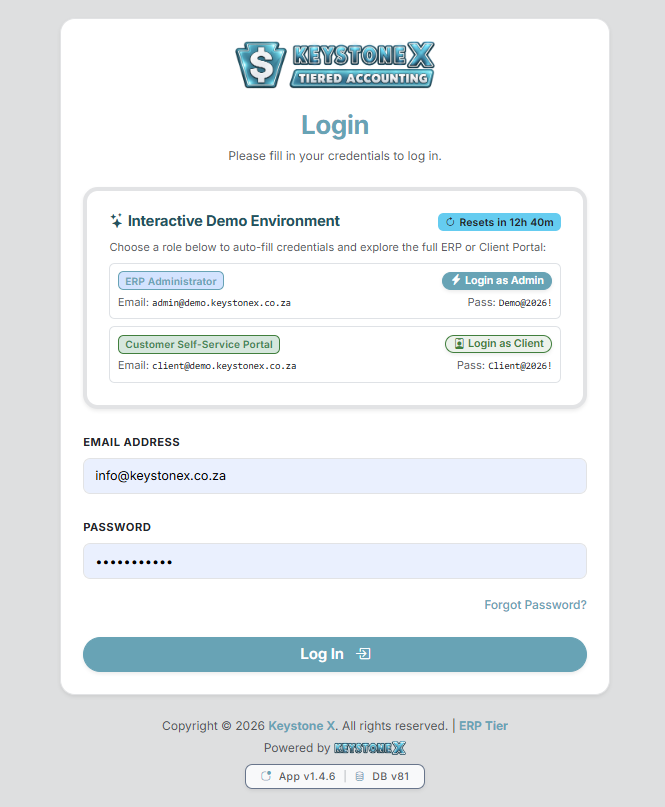
Both internal staff members (Administrators, Accountants, Sales Reps, Technicians) and external customers (Client Self-Service Portal users) sign in through the unified login screen at /user/login. Keystone X automatically detects your account type and routes staff to the Command Centre (/home/index) or customers to the Client Self-Service Portal (/portal/index).
1.1 Post-Installation Security Guard (/install Directory Lockout)
Immediately after installing or upgrading Keystone X on a server, if the /install folder is still present in your website's root directory, Keystone X automatically disables the login form and displays a red Security Warning: /install Directory Detected card. This protects your database from unauthorized re-installation.
| Button / Control | Exact Action & System Behavior |
|---|---|
| Yes, Delete /install Now | Sends an asynchronous background request to /user/deleteInstallDir to permanently delete the /install folder from your server. Once deleted, a green Security Hardening Complete banner appears and the login fields unlock immediately without reloading the page. |
| No, I'll Rename It | Expands the yellow Manual Action Required in cPanel instruction box explaining how to open cPanel File Manager, navigate to public_html, and rename /install (e.g., to install_backup). |
| I've Renamed It in cPanel — Verify Now | Checks the server via /user/checkInstallDir. As soon as the system confirms /install is gone or renamed, it unlocks the login form. |
1.2 Login Form Fields & Controls
| Field / Button | Type / Required | Description & Validation Logic |
|---|---|---|
Email Address (#email) |
Email (Required) | Enter your staff user email or client portal contact email. Validates email format and checks active account status. |
Password (#password) |
Password (Required) | Enter your account password. Passwords are verified against encrypted bcrypt hashes. |
| Forgot Password? Link | Navigation Link | Opens /user/forgot where you can enter your email address and click Send Reset Link to receive a time-limited password reset token via email (/user/reset/{token}). |
Log In Button (#btnLoginSubmit) |
Submit Button | Authenticates your credentials, logs the sign-in event in the Forensic Audit Log (with IP address and timestamp), and redirects you to your workspace. |
| Floating Theme Button (Top-Right Circle) | Dropdown Button | Allows you to switch between Light Mode (Sun icon), Dark Mode (Moon icon), or Auto Mode (follows your device's operating system theme) before logging in. |
| Footer Version Pill | Telemetry Badge | Displays App vX.X.X | DB vXX at the bottom of the screen so administrators and support engineers can verify the exact software and database migration version. |
2. Multi-Company Portal Selector (/user/selectCompany)
In Keystone X, a single person (such as an external bookkeeper, group director, or franchise owner listed in People & Contacts) can be linked to multiple Customer companies using the same email address.
When a contact linked to more than one customer account logs in, Keystone X automatically presents the Select Company Portal screen:
- Company Radio List: Displays every linked company name and Account ID (
Account #ID). Select the radio button for the entity you want to manage right now. - Continue to Portal: Opens the Client Self-Service Portal scoped to that company. (You can switch between your linked companies at any time from the Portal Sidebar without logging out!)
- Cancel and return to Login: Aborts the session selection and returns to
/user/login.
3. The Global Topbar & System Alert Banners
Once logged in, the sticky Top Navigation Bar remains visible at the top of every screen so you always have instant access to search, notifications, weather, theme controls, and contextual help.

3.1 Top System Alert Banners (Conditional)
Depending on your system state, up to four full-width alert ribbons may appear above the Topbar:
- Blue "Update Available!" Banner: Shown to administrators when a newer Over-The-Air (OTA) version of Keystone X is available. Clicking Review and Install jumps straight to
/admin/settings#updates. - Yellow "You are impersonating [Customer]" Banner: Shown when an administrator clicks Login as Customer from a Customer profile to preview what the client sees in their portal. Click the dark Return to Admin button to exit impersonation and return to your staff session immediately.
- Teal "Live Demo Environment" Banner: Shown only in Demo installations, indicating that outgoing emails/WhatsApp dispatches are safely simulated and displaying the auto-reset countdown.
- Red "Action Required: Your SMTP email settings are missing" Banner: Shown to administrators if SMTP credentials have not been configured yet. Clicking SMTP Settings opens
/admin/settings#emailso you can connect your mail server.
3.2 Every Control on the Global Topbar (Left to Right)
| Topbar Control | Icon / Location | What It Does & How to Use It |
|---|---|---|
Mobile Menu Toggle (#menu-toggle) |
(Far left, mobile/tablet screens) | Slides the main navigation sidebar in and out on smaller screens. |
| Welcome Greeting | Welcome, [First Name]! |
Confirms the currently logged-in operator or client name. |
Global Search Bar (name="q") |
Center Search Input + Button | Searches across 13+ database tables simultaneously (`Customers`, `Invoices`, `Quotes`, `Credit Notes`, `Inventory & Serials`, `Sales Leads`, `Tasks`, `Jobcards`, `Support Tickets`, `Payments`, `Purchase Orders`, `Vendors`, `Recurring Profiles`, and `Expenses`). Type any name, document number, email, or serial number and press Enter to open the categorized masonry results view (/search/index). |
Live Local Weather Pill (#weather-widget) |
Weather Icon + Temp (°C) + Suburb |
Displays live local weather and temperature for your configured company suburb (cached for 30 minutes for speed). Click the pill at any time to force an instant weather refresh. |
Live Date Display (#live-datetime) |
Day, Month Date, Year |
Displays the current server/operating date. |
Notifications Bell Dropdown (#notificationsDropdown) |
+ Red Unread Badge | Displays your unread alert count. Clicking the bell opens a dropdown showing your 5 most recent alerts, automatically marks them as read, and provides: • Rules (): Jumps to /notification/customize to choose which events notify you. • Mark read: Clears unread highlights. • View All Notifications: Opens the full Notification Command Centre ( /notification/index). |
Theme Mode Switcher (#bd-theme) |
/ / | Instantly switches the entire ERP interface between Light Mode, Dark Mode, and Auto Mode. Your choice is saved in your browser. |
| Contextual Page Help Button | Blue Button (Far Right) | Opens the right-hand Page Guide & Logic drawer (#helpOffcanvas). It automatically detects which page—and even which active tab—you are currently viewing and loads the specific guide for that screen. Click the icon inside the blue drawer header to highlight keywords within the guide! |
4. The Enterprise Sidebar & Navigation Layout Studio
The left-hand Enterprise Sidebar is your primary launchpad. Unlike rigid legacy accounting programs, Keystone X lets every staff member personalize their own sidebar layout, pin favorite screens, filter modules by keyword, and jump straight into any module's configuration studio.
4.1 Sidebar Top Toolbar & Quick Filter
| Sidebar Control | Function & Behavior |
|---|---|
| Company Brand Header | Clicking your company logo at the very top of the sidebar always returns you home to the Dashboard (/home/index) for staff, or Command Center (/portal/index) for portal clients. |
| Active Tier Badge | Displays your active license edition badge (e.g., Lite Tier, Pro Tier, or ERP Tier). |
Lock / Unlock Sections Button (#sidebarToggleLock) |
Toggles between Locked Open ( — keeps all 6 domain groups expanded at all times) and Smart Accordion ( — automatically expands only the group you are currently working in). |
Row Density Toggle (#sidebarDensityToggle) |
Switches sidebar spacing between Comfortable (Standard) and Compact (High-Density ERP) so smaller laptop screens can see more links without scrolling. |
Customize Pill Button (#openSidebarCustomizerBtn) |
Opens the Sidebar Navigation & Layout Studio modal (detailed in Section 4.3 below). |
Quick Filter Search Box (#kxSidebarFilterInput) |
Press Ctrl + / from anywhere in the app (or click the search input) and type any keyword (e.g., vat, serial, quote, bank). The sidebar immediately filters and expands matching modules and studios in real time. Press Esc to clear the filter. |
4.2 Hover Actions on Every Sidebar Link (Pin Star & Studio Sliders)
When you hover your mouse over any module row in the sidebar, two quick-action icons appear on the right side of that row:
- Pin / Unpin to Quick Access (
.kx-pin-item-btn): Clicking the star pins that module to a special gold Pinned Quick Access group at the very top of your sidebar. Click the gold star () again to unpin it. - Customize Studio Shortcut (
.kx-studio-quick-btn): Available to users with settings permissions. Clicking the sliders icon next to any module (for example, next to Tax Invoices or Inventory Items) jumps directly to that module's dedicated Customization Studio (e.g.,/invoice/settingsor/inventory/settings) without having to navigate through the main Site Settings menu!
4.3 The 7 Default Sidebar Navigation Groups
- Core Workspace (Top Pinned): Dashboard and Notifications.
- Inventory & Warehouse: Inventory Items and 360° Serial Tracker.
- Sales, CRM & Billing: Customers, People & Contacts, Sales Pipeline, Quotations, Tax Invoices, Recurring Invoices, Credit Notes, Payments Received, and Bulk Payments.
- Purchases & Payables: Suppliers & Vendors, Purchase Orders & GRN, and Expenses & Payables.
- Operations & Service: Projects, Tasks & Board, Workshop Job Cards, and Support Tickets.
- Treasury, Banking & BI: Bank Accounts, Internal Transfers, Cashbook Ledger, and Financial & BI Reports.
- Administration & Governance: Site Settings, Manage Users & Custody, Manage Roles & RBAC, Payment Terms, Tax Rates & SARS VAT, Email Templates, Email Queue & Spool, Automation & Cron, Backups & DR Vault, and Audit Logs & Provenance.
- My Account & Workspace: My Account & Custody, Workspace Studio, and Full Manual & Docs.
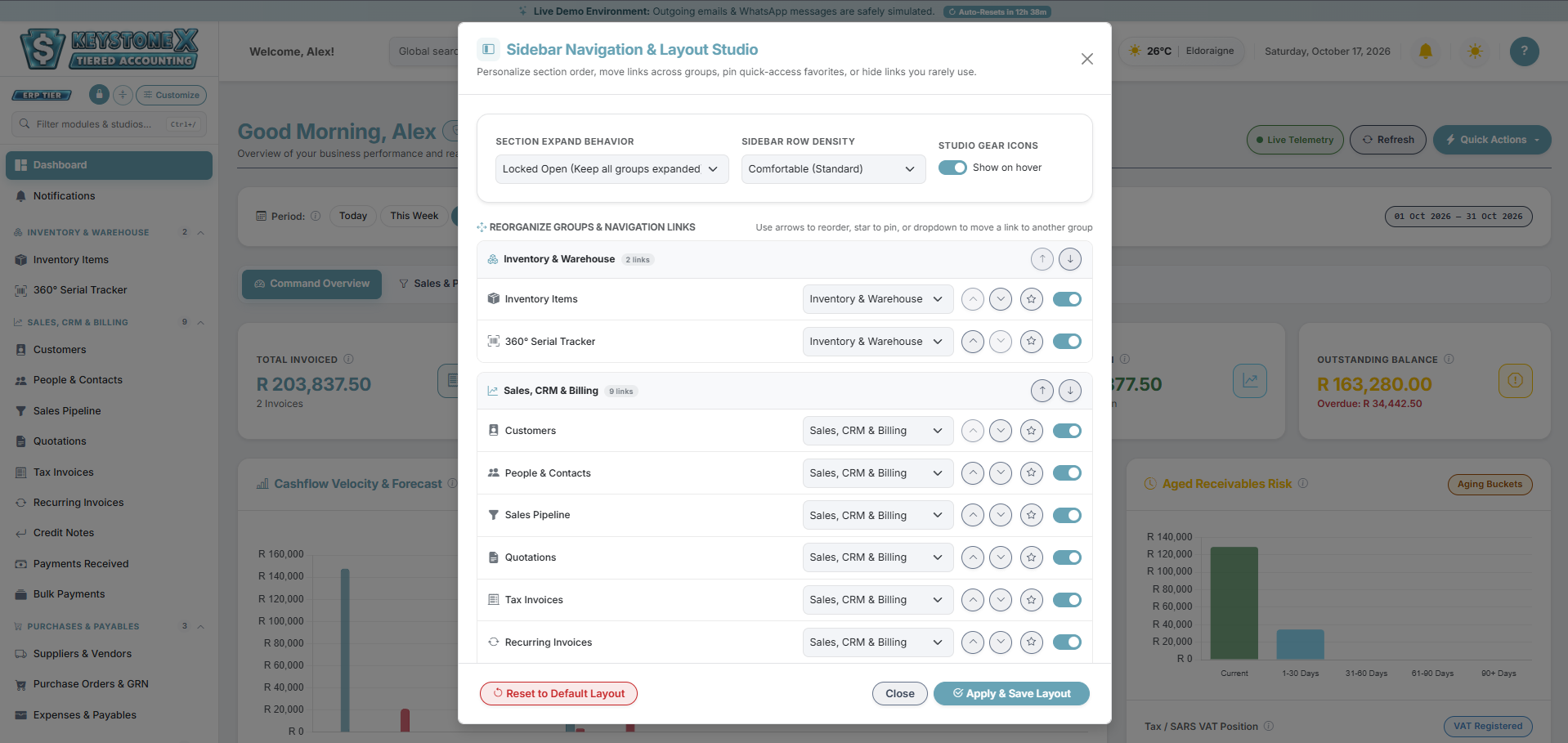
4.4 Inside the Sidebar Navigation & Layout Studio Modal (#sidebarCustomizerModal)
Clicking Customize at the top of the sidebar opens a modal where you can tailor the navigation bar to your daily role:
| Studio Setting / Control | What It Controls |
|---|---|
Section Expand Behavior (#kxCustNavMode) |
Choose between: • Smart Accordion: Auto-expands only the group containing your current page. • Multi-Expand: Remembers which groups you manually opened or closed across page loads. • Locked Open: Keeps all navigation groups permanently expanded. |
Sidebar Row Density (#kxCustDensity) |
Choose between Comfortable (Standard) or Compact (High-Density ERP). |
Studio Gear Icons (#kxCustShowGears) |
Toggle switch (Show on hover). Turn this OFF if you prefer a minimalist sidebar without the Studio shortcut icons appearing when hovering over links. |
| Group Reorder Arrows ( / ) | Moves an entire domain group (e.g., Operations & Service) higher or lower in your sidebar. |
| Link Controls (Per Item Row) | For every individual link inside a group, you can: • Click to Pin/Unpin it to Quick Access. • Click / to reorder the link within its group. • Use the Group Dropdown to move a link into a completely different group. • Click the / button to hide links you rarely use (note: an active page is never hidden while you are viewing it). |
Reset to Default Layout (#kxResetSidebarDefaultBtn) |
Clears all custom ordering, hidden links, and group moves, restoring the factory-default Keystone X sidebar immediately. |
Apply & Save Layout (#kxSaveSidebarCustBtn) |
Saves your personalized layout to your operator profile in browser storage and updates the sidebar immediately. |
4.5 Sidebar Footer Controls
- Logout (): Safely terminates your active session and returns you to
/user/login. - Modules Pill (): Shown to administrators; jumps directly to
/admin/settings#moduleswhere you can enable or disable entire ERP modules across the company.